
Raven is a NinjaTrader strategy that trades a BloodHound system’s signals: it enters on them, manages one profit target and stop-loss (or a NinjaTrader ATM), and can exit on BloodHound signals too. It comes free with BloodHound.
Raven is a legacy tool
Raven came with BloodHound before BlackBird existed. It’s still supported for quick, simple automation, but most traders now use BlackBird, which adds several targets and stops, Trailing Actions, position sizing, daily safeguards and much more. See Raven and BlackBird compared.
Setting up Raven
Like any strategy, Raven can run on a chart (as here) or from the Control Center’s Strategies tab; see NinjaTrader’s guide and Strategy position vs. account position.
- Open a chart with the timeframe and indicators you want. You don’t need BloodHound on it: Raven adds its own copy (one already on the chart runs separately and doesn’t affect Raven).
- Right-click the chart, choose Strategies…, and select SiRaven. (Grayed out? See NinjaTrader’s guide.)
- At the top of the properties, click Template file to choose the BloodHound file to trade.
- Choose the entry (and optionally exit) Logic Template, set the other properties, and enable it.
Entries
Raven enters on the signals of the Logic Template chosen in Entry Logic Template. While a position is open, more signals in the same direction are ignored: Raven never adds to a position. An opposite signal reverses it (unless Enter Only When Flat is on).
Switching Logic Templates during the day

Leave Entry Logic Template on (None), and Raven trades whichever Logic Template is chosen in the drop-down at the top of the chart. For example, one template for trending markets and another for ranges. This only works on real-time data: for backtesting, choose a Logic Template, or results will be missing or wrong.
Exits
Choose a Logic Template in Exit Logic Template to close positions on its signals: a Short signal closes a long position, and a Long signal closes a short. Exit signals never open or reverse a position.
Exits win
If an exit signal and an entry signal arrive on the same bar, the entry is ignored.
Starting and stopping Raven
NinjaTrader’s settings decide what happens to orders when a strategy is enabled or disabled: see Control Center » Tools » Options » Strategies and the Strategies window’s Setup properties. If you aren’t sure, set Start behavior to Wait until flat, check Cancel entry orders when a strategy is disabled, and uncheck Cancel exit orders when a strategy is disabled.
Immediate orders on enable
With Start behavior set to Immediately submit, Backtest Mode on, and Manage Trades Using set to Default, NinjaTrader submits an entry in the direction of Raven’s last historical entry as soon as Raven is enabled. Turning Backtest Mode off prevents this. (With an ATM, nothing is submitted, because NinjaTrader can’t track historical ATM orders.)
Known issue: multi-instrument BloodHound systems
Raven can’t run a BloodHound system that uses another instrument when Calculate is On price change or On each tick: after a few trades the chart locks up and its data stops (found in version 8.2.2.55). On price change lasts longer, but still locks up. On bar close works, and so do multi-timeframe systems with no instrument chosen in their Charts. A fix will be noted in the changelog.
Properties
System Template

| Setting | What it does |
|---|---|
| Template file | The BloodHound file Raven trades. Click to choose it. |
| Entry Logic Template | The Logic Template whose signals open trades, or (None) to follow the chart’s drop-down (real-time only). The chart can show a different template from the one Raven trades; to see Raven’s, choose the same one in the drop-down by Raven’s button. |
| Exit Logic Template | The Logic Template whose signals close trades. See Exits. |
| Show Racing Stripes, Long Threshold, Short Threshold | As in BloodHound: see BloodHound’s properties. |
| Compare L/S Confidence | As in BloodHound, with its Confidence Compare Ratio: see When a value is a signal. |
General Options

| Setting | What it does |
|---|---|
| Backtest Mode | Whether Raven processes signals on historical bars, so NinjaTrader can calculate backtest results. Off loads faster. Works as in BlackBird: see Backtest Mode in detail. |
| Start Auto Enabled | Whether the Chart Trader’s Auto button starts enabled. Off by default, so Raven never starts trading by itself; a chart reload resets the button to this setting. |
| Show Chart Trader | Shows Raven’s Chart Trader. Turning it off also forces Start Auto Enabled on, with no button to stop it. |
| Auto Trades Override Manual | On: entry and exit signals act on trades you placed with Raven’s buttons (an exit signal closes them; an opposite signal reverses them). Only Raven’s own trades are affected. |
| Enter Only When Flat | On: opposite entry signals are ignored, so Raven never reverses. Off: they reverse the position. |
| Throttle Market Data Delay | How often the Chart Trader’s bid, ask and last prices update. |
Entry Order Options

| Setting | What it does |
|---|---|
| Use Limit Orders | Enter with limit orders instead of market orders. (Raven doesn’t use stop limit orders.) |
| Cancel After X Bars | Cancels an unfilled limit entry after this many bars. -1 leaves it until the next entry signal. |
| Limit Offset From Entry | Where the limit goes, from the bar’s close (Calculate On bar close) or the current price (otherwise), in the chosen unit. Negative is a better price that needs a pullback: -5 ticks puts a long limit at 52.45 instead of 52.50, and a short at 52.55. Positive usually fills at once. |
| Allow Re-Entries On Same Bar | Only with Calculate On each tick or On price change. On: after the target or stop fills, Raven can enter again on the same bar if the signal is still there. |
Trade Management

Managing Trades Using chooses who manages the exit: Default (Raven places one profit target and one stop-loss as an OCO pair) or ATM (your saved NinjaTrader ATM strategy).
| Default setting | What it does |
|---|---|
| Quantity | Contracts to trade. For Forex sizes, see NinjaTrader’s guide. |
| Measurement Unit | Ticks: a tick distance (15 = 15 ticks). Percent: a percentage of the entry price (1.0 on a 1000.00 entry is a 10 point target). ATR: a multiple of the ATR (2.5 = 2.5 ATRs), so the distances follow volatility. |
| Profit Target | Its distance from the entry, in the Measurement Unit. |
| Stop Loss | Its distance from the entry, as a stop market order. For a dollar amount, divide by the tick value: $150 on CL ($10 a tick) is 15 ticks. |
| Trail The Stop Loss | Trails the stop-loss at that distance: when each bar closes (Calculate On bar close) or tick by tick. |
Using an ATM
Choose the ATM in ATM Template Name. Please read NinjaTrader’s Using ATM strategies, especially points 1, 2 and 4:
- An ATM can only be backtested with Market Replay or Playback data, or forward-tested live.
- ATM profit and loss isn’t shown in the Control Center’s Strategies tab; see the Accounts tab.
Signal Alerts

Play Sound shows four settings for sound files to play on entry and exit signals. NinjaTrader’s own sounds (in Options) take priority.
NinjaTrader properties
The remaining sections (Setup, Historical Fill Processing, Order Handling, Order Properties) are added by NinjaTrader to every strategy; see Understanding strategy properties. Some instruments can’t use a Time in force of GTC and need DAY; ask your broker. They work as for BlackBird: see BlackBird’s NinjaTrader properties, including the note on multi-instrument BloodHound systems.
Raven’s Chart Trader

| What it does | |
|---|---|
| 1. Auto Enable / Disable | Turns new entries on or off instantly. When disabled, Raven still exits on exit signals, still trails the stop-loss, and leaves working orders alone; use Close to cancel them. |
| 2. Manual entry buttons | Go Long / Go Short: market orders. Buy Ask / Sell Ask and Buy Bid / Sell Bid: limit orders at the ask or bid. Managed by the Trade Management settings; an opposite button reverses the position. See also Auto Trades Override Manual. |
| 3. Close | Closes this Raven’s position and cancels its orders. Other strategies’ positions aren’t touched. |
| 4. Position | Size (green long, red short), average price, and P&L: the open trade’s, or when flat, all real-time trades since Raven started. Click to switch between ticks, percent and currency. Raven values open trades at the bid and ask, so it can differ from NinjaTrader’s displays, which use the last price. |
| 5. Ask, Last, Bid | Current prices and volume. |
| 6. Order state | Long, Short, Flat or Reversing. |
NinjaTrader’s Close buttons
NinjaTrader’s own Close buttons flatten every position on the instrument and disable any strategy on it, Raven included. If NinjaTrader loses track of live orders, Raven can’t close them: use the Control Center’s Positions tab.
Moving and canceling orders

- Move an order: click its line (or the right of its label), then click again at the new price. Don’t drag. With Trail The Stop Loss on, the stop-loss moves back to its trailing price.
- Cancel an order: click the red X on its flag.
Strategy Analyzer
The Strategy Analyzer backtests Raven on a basket of instruments. Download the historical data you need first (Control Center » Tools » Historical Data) with the data feed connected, then disconnect the data feed before running the backtest.
Optimization
Raven’s Profit Target and Stop Loss can be optimized, but not the settings inside BloodHound’s solvers (see below), so it’s of limited use. BlackBird’s optimization can optimize BloodHound settings too. Optimizing uses a lot of CPU and memory: keep the ranges small enough for your computer.
Why BloodHound’s indicator settings can’t appear in NinjaTrader’s windows

NinjaTrader’s Indicators, Strategies and Strategy Analyzer windows use a fixed list of properties, defined when the indicator is built. BloodHound’s indicators can be added and removed at any time (swap a MACD, with Fast, Slow and Smooth, for a Momentum, with Period), and NinjaTrader can’t change that list on the fly. So Raven can’t expose them.
Videos
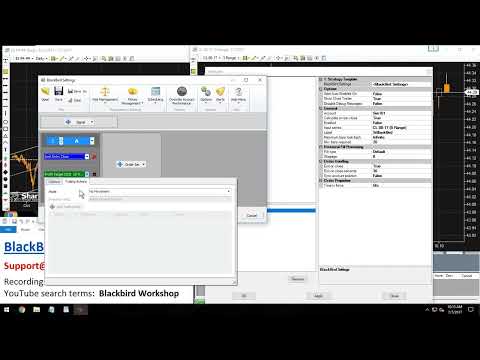 14:13
 42:28
 3:02:10
Detailed training for Raven, plus strategy tips
A full workshop. Entry logic, thresholds and entry options start at 36:40; trade management at 1:09:21.
Backtesting tips
Simulated orders

Often the last historical trade of a backtest is still open when the chart reaches real-time data. NinjaTrader turns it into a simulated real-time trade to finish the backtest, but the only sign on the chart is the last execution marker. Our strategies draw Simulated order flags for those orders, so you can see what NinjaTrader is doing.
Calculating backtest results
Our strategies don’t calculate backtest results; NinjaTrader’s backtesting framework does, on a chart or in the Strategy Analyzer. The strategy only tells NinjaTrader when and where to place each order, and when to move one (for example, a trailing stop-loss). How realistic the results are depends on NinjaTrader’s fill settings and data, and they don’t include slippage unless you set it.

Videos on backtesting
An overview of backtesting on a chart, with Q&A afterward.
The mechanics of backtesting.
Performance tip
Keep NinjaTrader’s database small (NinjaTrader’s performance tip #11). Signs it has grown too big:
- NinjaTrader or the chart pauses whenever an order is submitted, on any account.
- Orders take longer than usual to execute.
- A strategy takes longer to start.
To fix it, clear the simulation account history (NinjaTrader’s steps), or reset the database: Control Center » Tools » Database Management » Reset DB.
NinjaTrader strategy help
Backtesting and running strategies can be complex. These NinjaTrader pages explain the details.
| Topic | NinjaTrader pages |
|---|---|
| Running strategies | Running a NinjaScript strategy from a chart Strategy position vs. account position Setting real-time strategy options |
| Backtesting | Discrepancies: real-time vs. backtest Forex: real-time order fills vs. backtesting (in “How bars are built and orders filled”) |
| Disconnects | Options: connection loss handling How to keep strategies running during a disconnect Reconnection logic (see posts 2 and 6) Lost connection and not reestablished When a strategy loses connection |
Know the risks of computerized trading
Many systems are involved
Your computer runs Windows, which runs NinjaTrader, which runs the strategy (BlackBird or Raven). When the strategy acts on a signal, it sends an order request to NinjaTrader, which sends it to your broker, who approves it and sends it to the exchange. Fills are reported back the same way: exchange, broker, NinjaTrader, then the strategy. Any miscommunication, internet lag or overloaded server along the way can leave the strategy out of sync with your real position at the exchange.
If you suspect a problem with live orders, use Flatten Everything in the NinjaTrader Control Center, then call your broker to check. See NinjaTrader’s Risks of electronic trading.