The BloodHound window is where you build and edit a system. It has four main areas.

| Area | What it’s for |
|---|---|
| Menu | A ribbon menu. The Main tab has file management; the Logic tab has everything for building a system and moving around the Logic Board. |
| Solvers panel and Snippet Library | The left side: the list of the system’s solvers, or your library of snippets. Switch with the tabs at the bottom. |
| Logic Board | The center, where systems are built. Tabs along the top switch between Logic Templates, each an independent system (for example entry signals, exit signals, or a variant for a more volatile instrument). |
| Property Inspector | The right side: the settings of the node or chart selected on the Logic Board or in the Solvers panel. |
Closing the window (the X at the top right) also saves the system to its file. So does anything that closes the window for you, such as a chart reload, so changes aren’t lost. See AutoSave.
One file, one editor
If several BloodHounds have the same template file loaded, make your changes in only one of them, and don’t open the others’ windows while you do. Opening another one and closing it later saves its older copy over your changes. Only open the others to load the updated file.
Video: an introduction to the interface.
Menu area
Main tab

| Button | What it does |
|---|---|
| File section | Open, Save, Save As, or clear the window to start a new system. Like a spreadsheet, a BloodHound system is saved to a file (a template) so you can use it again after NinjaTrader restarts. |
| Undo / Redo | Undoes or redoes changes on the Logic Board and in the Property Inspector (not file changes). |
| Notes | Opens or closes a Notes area for a description of the system or reminders. |
| Snippets | Shows or hides the Snippet Library panel on the left. |
| Help | Links to training documents and videos, license management, and a manual check for updates (BloodHound also checks automatically every few days). |
Logic tab

Everything for creating, editing and moving around a system. Click a section image to see it in full.
Logic Template

Also available by right-clicking a Logic Template tab.
| Button | What it does |
|---|---|
| New Logic | Adds a Logic Template. |
| Rename | Renames the current Logic Template. |
| Copy Logic | Copies the visible Logic Template. The copy uses the same solvers, to save calculation: changing a solver in the copy also changes it in the original. |
| Delete Logic | Deletes the visible Logic Template. Undo brings it back. |
Create

Adds nodes to the center of the Logic Board (a new solver is also added to the Solvers panel). Also available by right-clicking the Logic Board.
| Button | What it does |
|---|---|
| Solvers | All the solvers. |
| Function | All the function nodes. |
| Logic | All the logic nodes. |
| Chart | Adds a secondary Data Series (chart data) to the Solvers panel, for a multi-timeframe system. |
Edit

Also available by right-clicking selected nodes on the Logic Board.
| Button | What it does |
|---|---|
| Undo / Redo | Reverses or restores a change, such as deleting the wrong solver or changing a node’s settings. |
| Copy | Copies the selected nodes to the Windows clipboard, as XML. |
| Paste | Pastes copied nodes onto the visible Logic Board (this one or another). |
| Delete | Deletes selected function and logic nodes. A solver node is only removed from the Logic Board; to delete the solver itself, delete it in the Solvers panel. |
Add Text

Adds a text box to the Logic Board for notes. Edit its text and colors in the Property Inspector.

Snippets

Snippets are reusable nodes or groups of nodes, such as a favorite filter, that you can drop into any system. Snippets shows or hides the Snippet Library; Add Snippet makes a snippet from the selected nodes (disabled when nothing is selected).
Align

| Button | What it does |
|---|---|
| Snapping | Turns snapping on or off. |
| Align Right | Lines up the selected nodes on their right edge (the output connector). Needs two or more nodes selected. |
| Align Top | Lines up the selected nodes on their top edge. Needs two or more nodes selected. |
Navigation

| Button | What it does |
|---|---|
| Pan | Turns pan mode on or off: dragging moves the view. Holding down the mouse wheel pans too. |
| Center View | With nothing selected: fits all nodes in view. With nodes selected: centers and zooms to them; click again to fit all nodes. |
| Zoom slider | Zooms out (−) and in (+), for mice without a scroll wheel. |
Options

Overrides the confidence thresholds for this Logic Template, so each Logic Template can have its own (useful for fuzzy logic systems). See BloodHound output. The same settings are on the Result node’s Options tab.

Share

Opens the Upload and Share window, with text ready to paste into a forum to share screenshots of your system and its template file.

Solvers panel

The master list of the system’s solvers, and where Charts (secondary timeframes) are managed. If the Snippet Library is showing, click the Solvers tab at the bottom.
| Button | What it does |
|---|---|
| Add | Adds a solver to the Solvers panel only; drag it onto the Logic Board to use it. |
| Delete | Deletes the selected solver or Chart. |
| Duplicate | Copies the selected solver or Chart. |
| Up / Down | Moves the selected solver to the Chart above or below (there must be at least one added Chart). To reorder solvers within a Chart, drag them. |
| Add Chart | Adds a secondary Data Series for a multi-timeframe or multi-instrument system. Solvers moved under a Chart run their indicators and read prices on that Chart’s data. |
Snippet Library

Your snippets and the buttons to manage them. If the Solvers panel is showing, click the Snippet Library tab at the bottom. Double-click a snippet’s name to rename it.
Each snippet is two files in the NinjaTrader folder: an XML file of the nodes (a mini BloodHound file) and an image for the library. You can copy them to other computers or share them with friends.
| Button | What it does |
|---|---|
| Add Snippet | Makes a snippet from the selected nodes, ready to be named. Disabled when nothing is selected. |
| Remove Snippet | Deletes the selected snippets. This can’t be undone. |
| Refresh | Rescans the snippet folder, for example after moving or renaming files in File Explorer. |
| Insert Snippet | Inserts the selected snippet into the visible Logic Board. You can also drag a snippet to place it exactly. |
| Snippet Folder | Opens the snippet folder in File Explorer. |
Video: where snippet files are kept, to copy them to another computer or share them.
Logic Board
Where systems are built (formerly called the System Design Area). Each system, or each variant of one, lives in its own Logic Template, shown as tabs along the top. Click a tab to switch; drag tabs to reorder them.
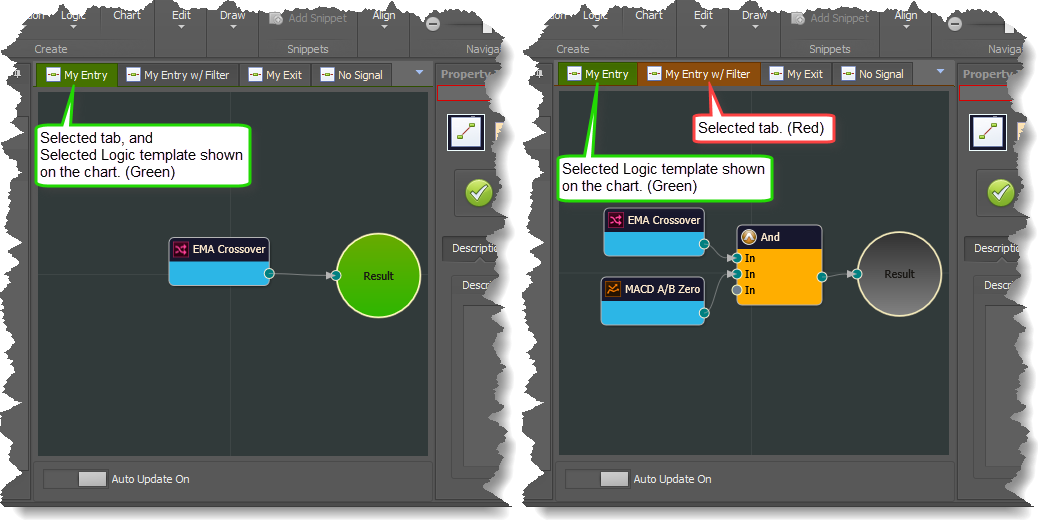
| Color | Meaning |
|---|---|
| Green tab and green Result node | The Logic Template being calculated and shown on the chart. |
| Red tab and gray Result node | The Logic Template you’re viewing, which isn’t the one shown on the chart. |
Each Logic Template has exactly one Result node; it can’t be deleted.
Memory and CPU
BloodHound doesn’t calculate a Logic Template until it has been selected (from the drop-down at the top of the chart) for the first time. After that it keeps calculating it in the background, so switching between templates is instant.
In BlackBird and Raven this saving isn’t possible: every Logic Template is calculated in the background. Keep the number of Logic Templates and solvers to a minimum for live trading and optimization.
Property Inspector

Shows the settings of the selected node. The yellow bar at the top shows its name, where you can rename it. There are usually three tabs:
| Tab | What it has |
|---|---|
| Properties | The node’s essential settings. |
| Options | Secondary settings shared by all nodes, such as Weight and Description. |
| Help | This website’s page for the selected node, inside BloodHound (needs NinjaTrader 8.0.26.0 or newer). |
AutoSave and semi-automatic loading
BloodHound helps preserve your work automatically, but there are situations to be aware of. Please read this section carefully.
| Feature | How it works |
|---|---|
| AutoSave | The system is saved to its file every time the BloodHound window closes, unless another BloodHound is saving to the same file at the same time. Anything that reloads or refreshes the chart closes the window, and so saves. |
| Semi-automatic loading | BloodHound remembers the file’s timestamp whenever it loads or saves. If the file has been saved by another BloodHound since, a chart reload loads the newer file. In practice this only happens when the same file is open in several BloodHounds and one of them saves changes. |
| Newer version notification | When you open the window and the file is newer than the copy in memory, BloodHound offers to load it. It can occasionally appear when nothing significant changed. |

One file, one editor
If several BloodHounds have the same template file loaded, make your changes in only one of them, and don’t open the others’ windows while you do. Opening another one and closing it later saves its older copy over your changes. Only open the others to load the updated file.
Several windows open at once
If two or more BloodHound windows with the same file are open when the data connection reconnects, every chart reloads and every window saves, in an order NinjaTrader decides at random. The last one to save wins, and it may hold an older system. After editing a system, load the changes into the other BloodHounds as soon as you can; opening their windows offers to load the newer file.